27
How to Find Your IP Address on iPhone (Step-by-Step Guide)
Learn how to find your IP address on iPhone, including both private and public IP addresses. Follow simple step-by-step instructions and discover the easiest way to check your public IP instantly.
Introduction
Whether you're troubleshooting a network issue, setting up a smart device, configuring a router, or verifying a VPN connection, knowing your IP address on an iPhone can be extremely helpful.
Like most devices, your iPhone has two different IP addresses:
- A private IP address used within your local Wi-Fi network.
- A public IP address used when your device connects to the internet.
This guide explains how to find both on any modern iPhone running iOS.
If you simply want to know your public IP address, you can check it instantly using our free What Is My IP Address tool:
https://mwp6.com/tool/whats-my-ip
Public IP vs Private IP
Before checking your IP address, it's important to understand the difference.
Your private IP address is assigned by your Wi-Fi router and is only used inside your local network.
Your public IP address is assigned by your Internet Service Provider (ISP) and identifies your internet connection on the web.
The iPhone Settings app displays your private IP, while an online IP lookup tool shows your public IP.
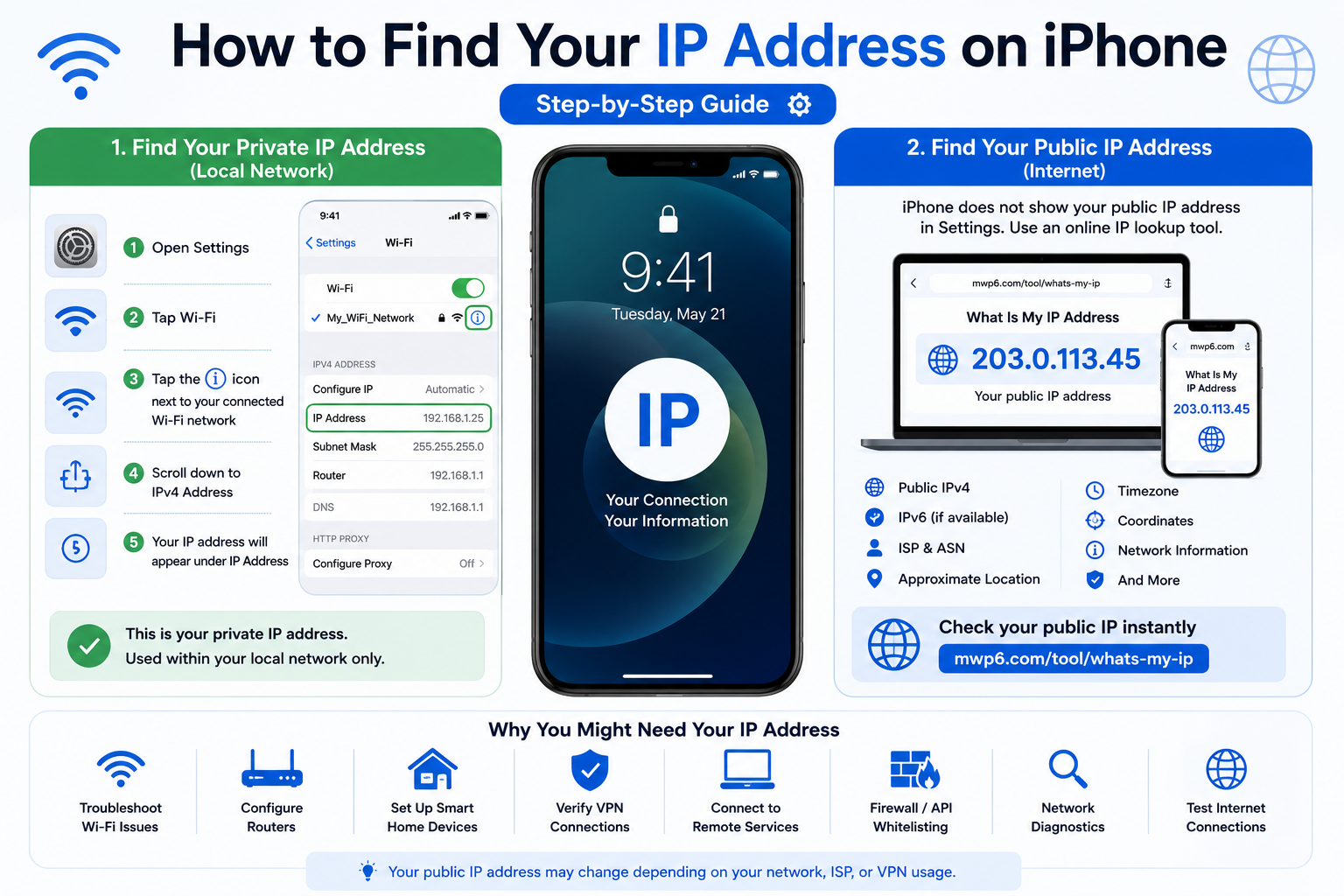
Method 1: Find Your Private IP Address on iPhone
Finding your private IP address takes only a few seconds.
- Open Settings.
- Tap Wi-Fi.
- Tap the ⓘ icon next to your connected Wi-Fi network.
- Scroll down to IPv4 Address.
- Your IP address will appear under IP Address.
You'll also see other useful network details such as:
- Router
- Subnet Mask
- DNS
- MAC Address (Private Wi-Fi Address)
Method 2: Find Your Public IP Address
iPhone does not display your public IP address inside Settings.
The easiest solution is to use an online IP lookup tool.
Our free What Is My IP Address tool instantly displays:
- Public IPv4
- IPv6 (if available)
- ISP
- ASN
- Approximate location
- Timezone
- Geographic coordinates
- Additional network information
Check your public IP here:
https://mwp6.com/tool/whats-my-ip
Why Might You Need Your IP Address?
Your IP address can be useful for:
- Troubleshooting Wi-Fi problems
- Configuring routers
- Setting up smart home devices
- Verifying VPN connections
- Connecting to remote services
- Firewall or API IP whitelisting
- Network diagnostics
- Testing internet connections
Why Does My IP Address Change?
Your IP address may change when:
- You connect to a different Wi-Fi network.
- You switch to cellular data.
- Your ISP assigns a new dynamic IP address.
- You enable or disable a VPN.
- Your router renews its DHCP lease.
This is completely normal for most internet connections.
Can I Change My IP Address?
Yes.
You can often change your public IP by:
- Connecting to another Wi-Fi network
- Switching to mobile data
- Restarting your router
- Using a VPN
- Using a proxy service
Frequently Asked Questions
Does iPhone show my public IP?
No.
The Settings app only displays your private IP address.
To view your public IP, use an online IP lookup tool.
Is my Wi-Fi IP address the same as my public IP?
No.
The IP shown inside your Wi-Fi settings is your private IP address.
Your public IP is shared by your internet connection and is different.
Does my IP address change when I use mobile data?
Yes.
Your mobile carrier assigns a different public IP address than your home Wi-Fi network.
Can I have both IPv4 and IPv6?
Yes.
Many modern internet providers support both IPv4 and IPv6 simultaneously.
Is it safe to share my IP address?
Your public IP address alone does not give someone access to your iPhone, but it's generally best not to share it publicly unless necessary.
Conclusion
Finding your IP address on an iPhone is easy once you know where to look. The Settings app lets you view your private IP address, while an online IP lookup tool is the fastest way to check your public IP and additional network information.
If you'd like to instantly check your public IP address, ISP, ASN, location, and other connection details, try our free tool:
👉 https://mwp6.com/tool/whats-my-ip
Contact
Missing something?
Feel free to request missing tools or give some feedback using our contact form.
Contact Us