27
How to Find Your IP Address on macOS (MacBook & iMac Guide)
Learn how to find your IP address on macOS using System Settings and Terminal. Discover the difference between public and private IP addresses and the easiest way to check your public IP instantly.
Introduction
Knowing your IP address on a Mac can help when troubleshooting network issues, configuring routers, setting up printers, connecting to remote servers, or verifying VPN connections.
Like other operating systems, macOS uses two different IP addresses:
- A private IP address used within your local network.
- A public IP address used to communicate with websites and online services.
This guide explains how to find both on any modern Mac running macOS.
If you only need your public IP address, you can check it instantly using our free What Is My IP Address tool:
https://mwp6.com/tool/whats-my-ip
Public IP vs Private IP
Before checking your IP address, it's useful to understand the difference.
A private IP address is assigned by your router and is only used inside your home or office network.
A public IP address is assigned by your Internet Service Provider (ISP) and identifies your internet connection on the web.
macOS displays your private IP address in System Settings, while an online IP lookup tool shows your public IP.
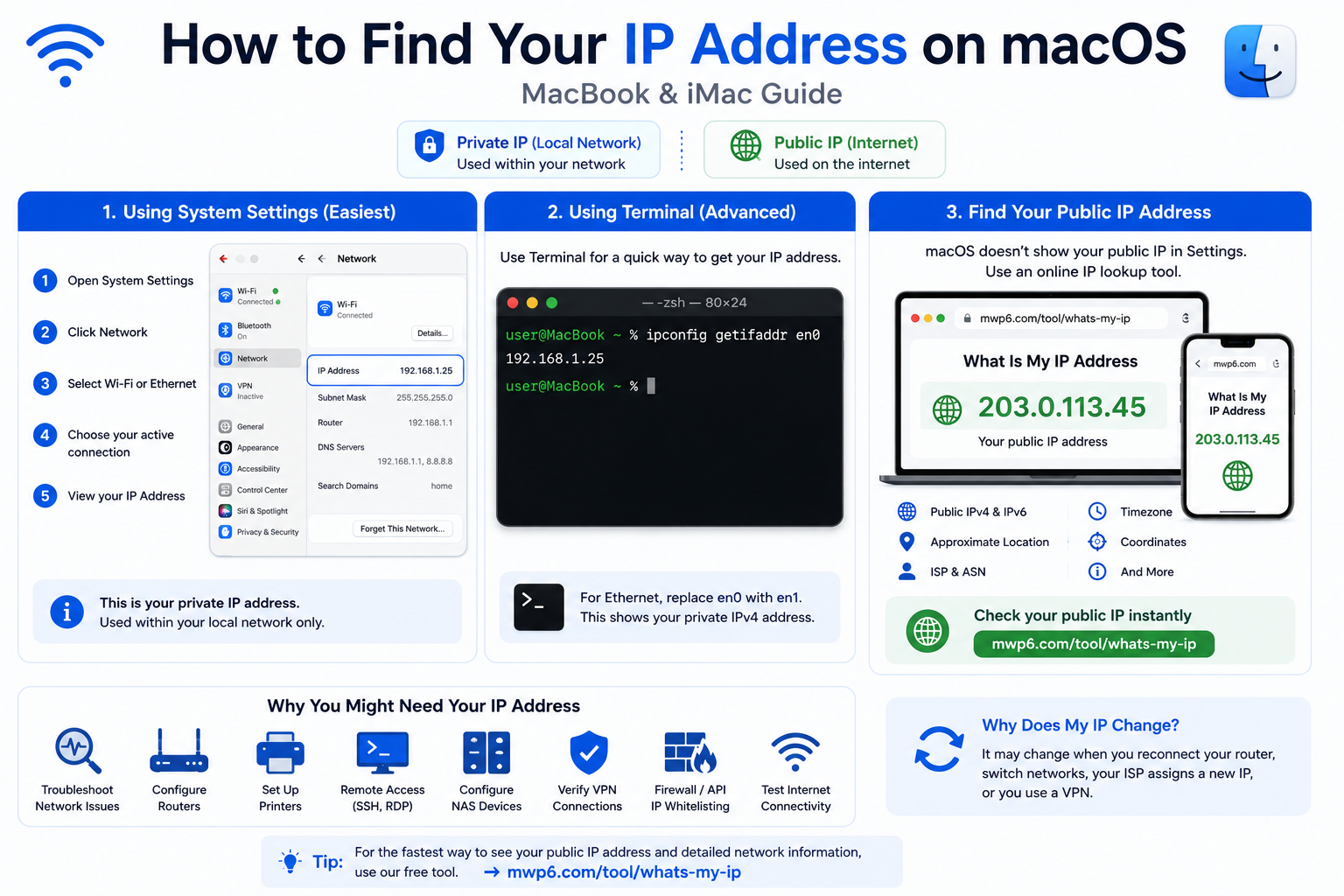
Method 1: Find Your IP Address Using System Settings
The easiest way to find your private IP address is through System Settings.
- Open System Settings.
- Select Network.
- Click Wi-Fi or Ethernet, depending on your connection.
- Select your active network.
- View the IP Address under the network details.
Your Mac's private IPv4 address will be displayed.
Method 2: Find Your IP Address Using Terminal
Advanced users can also retrieve their IP address using Terminal.
Open Terminal and run:
ipconfig getifaddr en0
If you're connected through Ethernet instead of Wi-Fi, you may need to replace en0 with en1.
Terminal instantly returns your private IPv4 address.
Method 3: Find Your Public IP Address
macOS does not display your public IP address in System Settings.
The easiest solution is to use an online IP lookup tool.
Our free What Is My IP Address tool instantly displays:
- Public IPv4
- IPv6 (if available)
- ISP
- ASN
- Approximate location
- Timezone
- Geographic coordinates
- Additional network information
Check your public IP here:
https://mwp6.com/tool/whats-my-ip
Why Might You Need Your IP Address?
Your IP address can be useful for:
- Network troubleshooting
- Router configuration
- Remote Desktop and SSH access
- Setting up printers
- Configuring NAS devices
- Verifying VPN connections
- Firewall or API IP whitelisting
- Testing internet connectivity
Why Does My IP Address Change?
Your public IP address may change when:
- You reconnect your router.
- You connect to another Wi-Fi network.
- Your ISP assigns a new dynamic IP.
- You enable or disable a VPN.
- You switch between Wi-Fi and Ethernet.
This is completely normal.
Frequently Asked Questions
Does macOS show my public IP?
No.
System Settings only display your private IP address.
Use an online IP lookup tool to see your public IP.
Can I have both IPv4 and IPv6?
Yes.
Most modern Mac computers support both IPv4 and IPv6 simultaneously.
Why do I have different IP addresses on Wi-Fi and Ethernet?
Each network connection can receive its own private IP address.
Your public IP may also differ depending on the network you're using.
Can I change my IP address on macOS?
Yes.
You can often change your public IP by connecting to another network, restarting your router, or using a VPN.
Is it safe to share my IP address?
Your public IP address alone does not give someone access to your Mac, but it is generally best not to share it publicly unless necessary.
Conclusion
Finding your IP address on macOS is quick and easy. System Settings and Terminal allow you to view your private IP address, while an online IP lookup tool is the fastest way to check your public IP and other network information.
If you'd like to instantly view your public IP address, ISP, ASN, location, and more, try our free tool:
👉 https://mwp6.com/tool/whats-my-ip
Contact
Missing something?
Feel free to request missing tools or give some feedback using our contact form.
Contact Us