27
How to Find Your IP Address on Windows (Windows 11 & Windows 10)
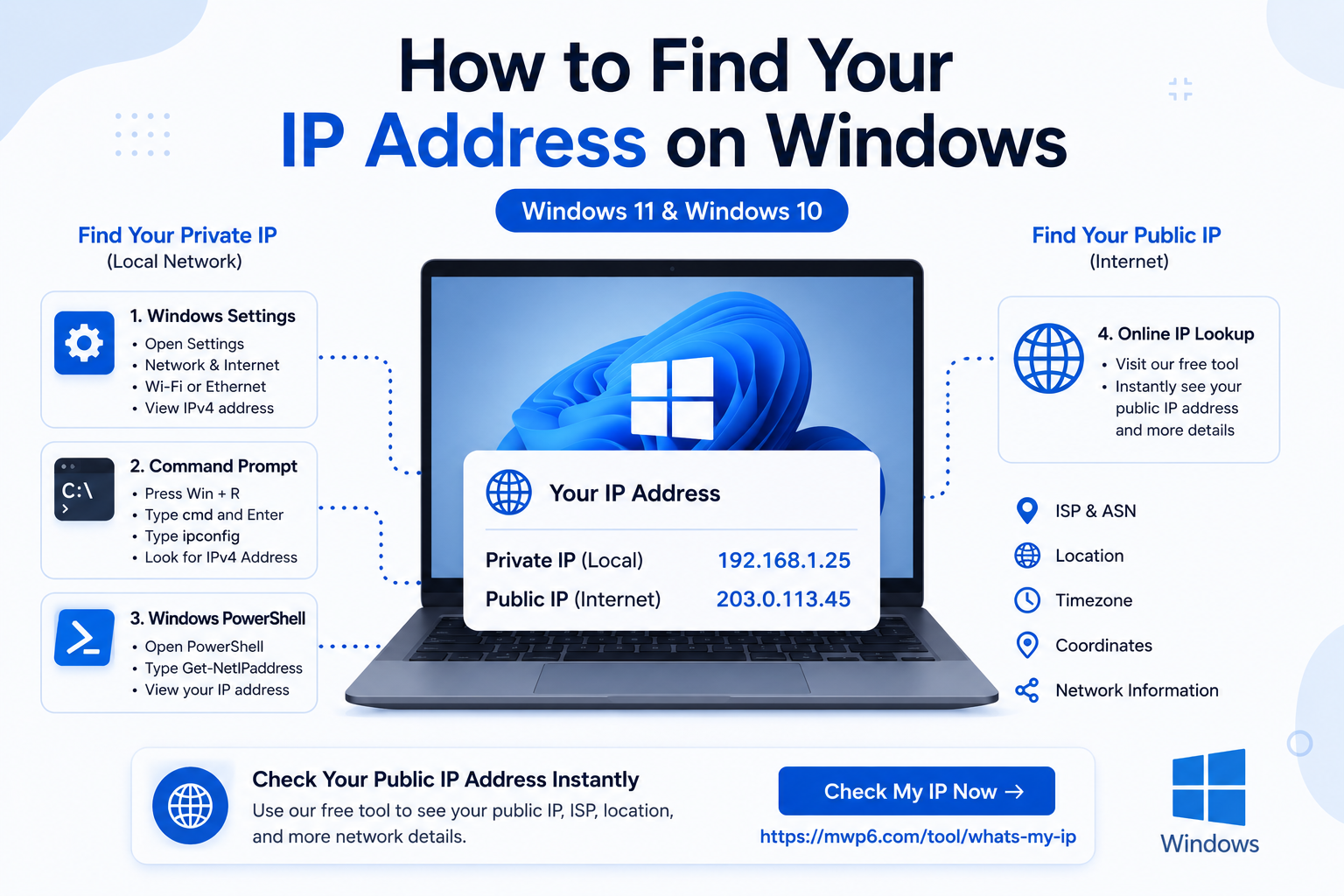
Learn how to find your IP address on Windows 11 and Windows 10 using Settings, Command Prompt, and PowerShell. Also discover the easiest way to check your public IP address instantly.
Introduction
There are many situations where you may need to find your IP address on Windows. Whether you're troubleshooting a network problem, setting up a printer, configuring remote access, or checking your internet connection, knowing your IP address can save time.
Windows actually uses two types of IP addresses:
- Private IP address, which identifies your computer on your local network.
- Public IP address, which identifies your internet connection.
This guide explains how to find both on Windows 11 and Windows 10.
If you only need to know your public IP address, you can check it instantly using our free What Is My IP Address tool:
https://mwp6.com/tool/whats-my-ip
Public IP vs Private IP
Before checking your IP address, it's important to understand the difference.
A private IP is assigned by your router and is only used inside your home or office network.
A public IP is assigned by your Internet Service Provider (ISP) and is visible on the internet.
Most Windows settings display your private IP, while an online IP lookup tool shows your public IP.
Method 1: Find Your IP Address Using Windows Settings
This is the easiest method for most users.
Windows 11
- Open Settings.
- Select Network & Internet.
- Choose Wi-Fi or Ethernet.
- Click your active connection.
- Scroll to IPv4 address.
Your private IP address will be displayed.
Windows 10
- Open Settings.
- Select Network & Internet.
- Click Wi-Fi or Ethernet.
- Select your connected network.
- View the IPv4 address.
Method 2: Use Command Prompt
Command Prompt provides detailed network information.
- Press Windows + R.
- Type:
cmd
- Press Enter.
Then run:
ipconfig
Look for:
IPv4 Address
This is your private IP address.
Method 3: Use Windows PowerShell
You can also retrieve your IP address using PowerShell.
Open PowerShell and run:
Get-NetIPAddress
Windows will display all available network addresses.
Method 4: Find Your Public IP Address
The previous methods only display your private IP.
If you need your public IP address, simply visit:
https://mwp6.com/tool/whats-my-ip
The tool instantly displays:
- Public IPv4
- IPv6 (if available)
- ISP
- ASN
- Approximate location
- Timezone
- Geographic coordinates
- Network information
No installation or login required.
Why Might You Need Your IP Address?
Knowing your IP address can help with:
- Remote Desktop
- SSH connections
- Router configuration
- Network troubleshooting
- Printer setup
- Firewall configuration
- API IP whitelisting
- VPN verification
Frequently Asked Questions
Does Windows show my public IP?
No.
Windows Settings and Command Prompt usually display your private IP address only.
To see your public IP, use an online IP lookup tool.
What's the difference between IPv4 and IPv6?
IPv4 uses four groups of numbers separated by periods.
IPv6 uses a much longer hexadecimal format designed to support the growing number of internet-connected devices.
Why do I have more than one IP address?
Your computer may have:
- One private IPv4 address
- One private IPv6 address
- One public IP assigned to your internet connection
This is completely normal.
Does restarting my router change my IP?
It depends on your Internet Service Provider.
Many ISPs assign dynamic public IP addresses that may change after reconnecting your router.
Can two computers have the same IP address?
Not on the same network.
Every device connected to the same local network must have a unique private IP address.
Conclusion
Finding your IP address on Windows is simple once you know where to look. Windows Settings, Command Prompt, and PowerShell can all display your private IP address, while an online IP lookup tool is the fastest way to see your public IP.
If you want to instantly check your public IP address, ISP, ASN, location, and other network details, try our free tool:
👉 https://mwp6.com/tool/whats-my-ip
Contact
Missing something?
Feel free to request missing tools or give some feedback using our contact form.
Contact Us