26
Why APNG Is Replacing GIF for High-Quality Web Animations
APNG is a modern image format that delivers higher-quality animations than GIF by supporting millions of colors and full alpha transparency. In this article, we compare APNG and GIF, explain their key differences, discuss when each format should be used, and show why many developers now prefer APNG for web interfaces, product demos, and UI animations. You'll also learn simple tips for creating better APNG files and discover an easy way to convert short videos into high-quality animated PNGs.
If you've ever converted a short video into a GIF, you've probably noticed the result doesn't look quite like the original. Colors appear dull, gradients become rough, and transparent edges often look jagged.
The reason isn't the converter—it's the GIF format itself.
Although GIF has been the standard for web animations for decades, it was designed in an era when display technology and internet speeds were very different. Today, formats like APNG (Animated PNG) offer a much better alternative for developers, designers, and content creators who care about image quality.
Let's see why.
What Is APNG?
APNG (Animated Portable Network Graphics) is an extension of the PNG image format that supports animation.
Unlike GIF, APNG preserves the same high-quality image characteristics as a regular PNG while allowing multiple frames to play as an animation.
This means you get:
- Millions of colors
- Smooth transparency
- Sharper details
- Better overall image quality
For websites and modern applications, this often produces a much more professional result.
APNG vs GIF
Both formats can display animations, but they're built with very different capabilities.
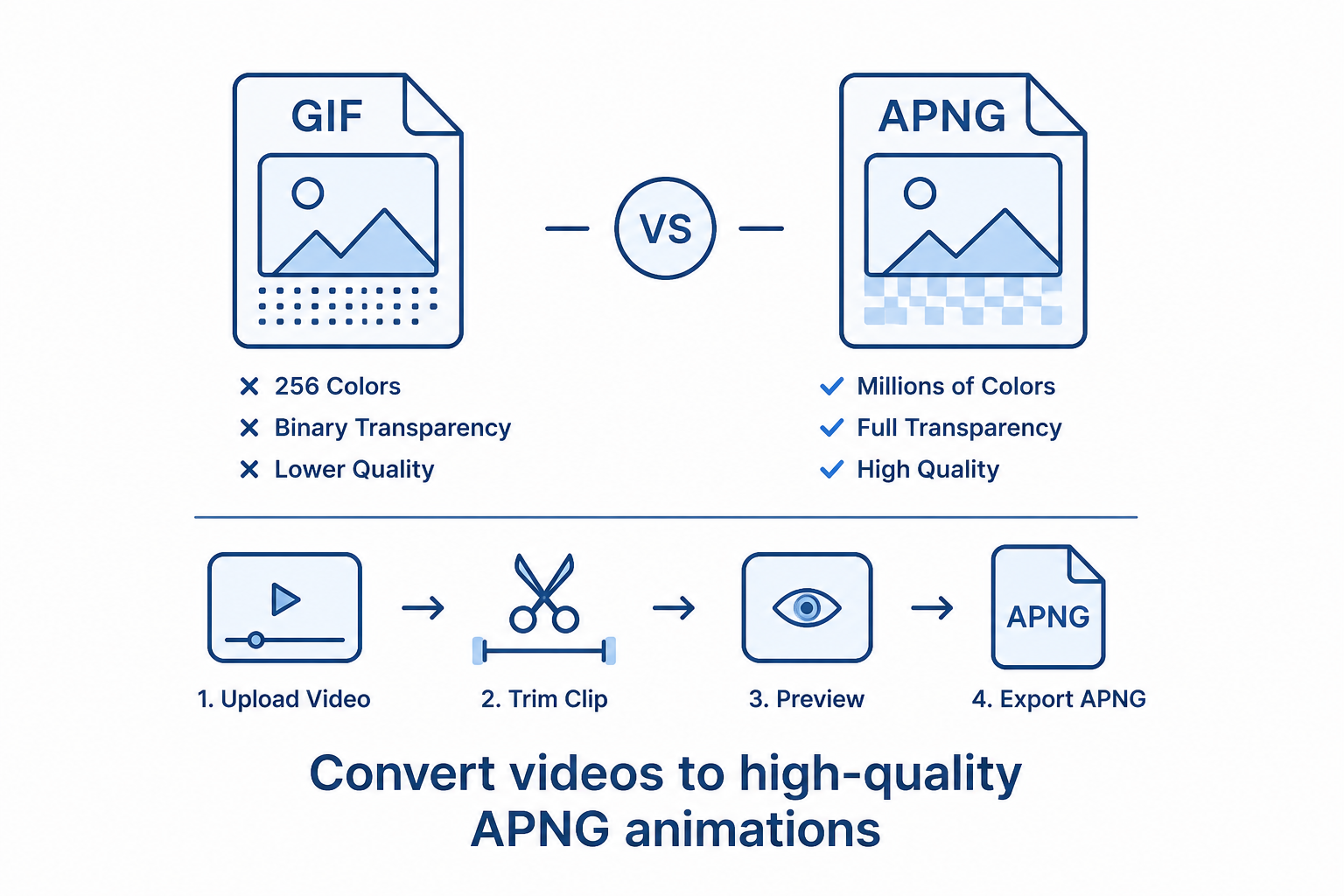
FeatureGIFAPNGColor Support | 256 colors | Millions of colors
Transparency | Basic | Full alpha transparency
Image Quality | Limited | Much higher
Gradients | Often banded | Smooth
Best For | Simple memes | UI, websites, product demos
The biggest difference is color depth.
GIF is limited to just 256 colors, which means detailed videos lose a lot of visual information during conversion.
APNG doesn't have this limitation, so animations remain much closer to the original video.
Why Developers Prefer APNG
Many modern interfaces contain subtle shadows, gradients, transparent overlays, and smooth animations.
These elements don't translate well into GIF.
APNG, however, preserves these details much more accurately, making it ideal for:
- UI animations
- Product walkthroughs
- Website illustrations
- Animated icons
- Loading animations
- Interactive tutorials
- App demonstrations
If visual quality matters, APNG is usually the better choice.
Converting Video Instead of Creating Animations Manually
A common workflow today is recording a short screen capture and converting only the part you need.
For example, you might record:
- A button animation
- A dropdown menu
- A hover effect
- A loading indicator
- A product feature
Instead of rebuilding the animation frame by frame, you simply trim the video and export it as an APNG.
It's faster and usually produces a cleaner result.
Tips for Better APNG Files
To get the best results:
- Keep animations between 3 and 6 seconds.
- Trim unnecessary frames before exporting.
- Focus on the important part of the video.
- Use high-quality source videos.
- Preview the animation before downloading.
Short animations usually look better and produce smaller file sizes.
Should You Stop Using GIF?
Not necessarily.
GIF is still useful when maximum compatibility is required, especially on older platforms or applications that don't support APNG.
However, if you're building a modern website, web application, documentation site, or online portfolio, APNG is often the better option because it delivers noticeably higher image quality while supporting smooth transparency.
A simple rule is:
- Choose GIF if compatibility is your top priority.
- Choose APNG if quality and appearance matter most.
Try It Yourself
If you want to convert a short video into an APNG, you don't need desktop software. There are online tools that let you upload a video, trim the exact section you want, preview the result, and export it as an APNG directly from your browser.
I've been using this one recently because it includes an interactive trimming editor, making it easy to select the perfect start and end points before converting:
👉 https://mwp6.com/tool/video-to-apng
Final Thoughts
GIF helped shape the early web, but it's no longer the only option for animated images.
As browsers and web technologies continue to evolve, APNG has become an excellent choice for anyone who wants cleaner animations, richer colors, and better transparency without adding extra complexity to their workflow.
If you've been exporting every animation as a GIF out of habit, it's worth trying APNG on your next project—you'll likely notice the difference immediately.
Contact
Missing something?
Feel free to request missing tools or give some feedback using our contact form.
Contact Us